10 Git mistakes beginners make, and how to fix them
The 10 Git mistakes that trip up beginners the most: the exact error message, what Git is trying to tell you, and the command that gets you out.
By Anaïs Sparesotto (opens in a new window)Published 7 min read
The Git mistakes that trip up beginners the most almost never involve advanced commands: they're a forgotten git add, the wrong branch, or a git pull run with work in progress. Here are the ten most common ones, with the exact message Git prints, what it's trying to tell you, and the command that gets you out.
Already staring at a specific error message? The Git error guide has a step-by-step fix for each one.
The good news: in most cases, Git stops before it breaks anything. An error message isn't a disaster. It's Git asking you to make a choice.
1. Committing without git add
This is the classic first-week mistake. You edit a file, run git commit, and Git refuses:
git commit -m "Add the home page"On branch mainChanges not staged for commit: (use "git add <file>..." to update what will be committed) (use "git restore <file>..." to discard changes in working directory) modified: index.html no changes added to commit (use "git add" and/or "git commit -a")Why: a commit only records what you put in the staging area. Editing a file isn't enough.
The fix: git add index.html, then git commit. For a brand new file the message is slightly different (nothing added to commit but untracked files present), but the fix is the same. The full mental model is in Git commit vs push vs pull.
2. Thinking the commit is online
You committed, so you assume your work is on GitHub. It isn't: a commit stays on your machine until you git push. If your laptop dies, those commits go with it.
The habit: git status tells you. A line like Your branch is ahead of 'origin/main' by 2 commits means two commits haven't been sent yet.
3. Switching branches or pulling with uncommitted changes
The message people search for the most:
git switch other-brancherror: Your local changes to the following files would be overwritten by checkout: index.htmlPlease commit your changes or stash them before you switch branches.AbortingYou get the same thing with git pull or git merge (would be overwritten by merge), git revert or git cherry-pick.
Why: you changed index.html without committing it, and the command you're running needs to replace that same file. Instead of overwriting your work, Git stops (Aborting): nothing is lost.
The fix depends on what you want to do with your changes:
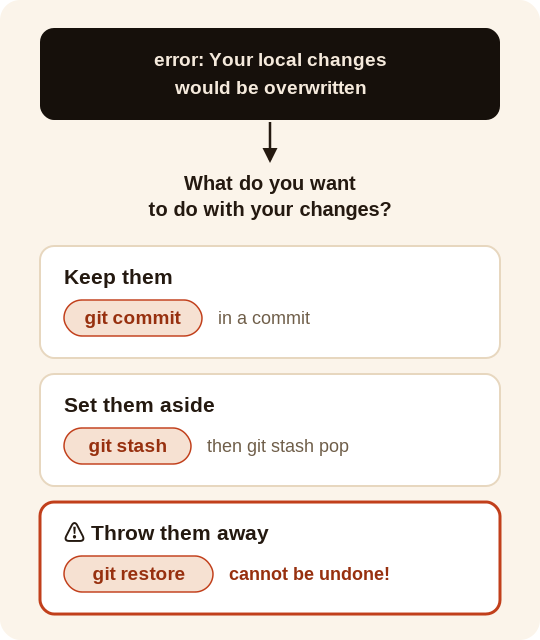
Each option in detail: local changes would be overwritten.
4. Getting your git push rejected
git push origin main ! [rejected] main -> main (fetch first)error: failed to push some refs to 'github.com:camille/my-site.git'hint: Updates were rejected because the remote contains work that you do nothint: have locally.Why: someone pushed to the same branch before you. The remote has commits you don't, and Git refuses to overwrite their work.
The fix: git pull to get those commits, check everything still works, then git push again. Never git push --force on a shared branch: you'd erase your teammate's work. Step by step: failed to push some refs.
5. Panicking at a merge conflict
git merge featureAuto-merging a.txtCONFLICT (content): Merge conflict in a.txtAutomatic merge failed; fix conflicts and then commit the result.The file now holds both versions, between markers:
<<<<<<< HEAD
title main
=======
title feature
>>>>>>> featureWhy: both branches changed the same line, and Git can't guess which one to keep.
The fix: pick or combine the two versions, delete the markers, then git add a.txt and git commit. If you'd rather deal with it later, git merge --abort puts everything back as it was before the merge. Full guide: resolve a merge conflict step by step.
6. Working directly on main
You started a feature and made two commits… on main, while your team works with branches.
If you haven't committed yet: git switch -c my-branch. Your uncommitted changes come with you to the new branch.
If you already committed, but haven't pushed:
# 1. Create a branch that keeps your commitsgit branch my-branch# 2. Move main back to where the remote isgit reset --hard origin/mainHEAD is now at 59e8ce8 Update the README# 3. Carry on in your branchgit switch my-branchYour commits aren't lost: they're on my-branch. Careful, git reset --hard also wipes uncommitted changes, so run git status first.
7. Ending up in detached HEAD
git checkout 539c9deNote: switching to '539c9de'. You are in 'detached HEAD' state. You can look around, make experimentalchanges and commit them, and you can discard any commits you make in thisstate without impacting any branches by switching back to a branch.# (output shortened)Why: you checked out a specific commit instead of a branch. That's handy to look at the project at a given point in time, but commits made here don't belong to any branch.
The fix: git switch - to go back to the previous branch, or git switch -c new-branch if you want to keep what you did. See detached HEAD.
8. Running git reset --hard without checking
git reset --hard puts your files back exactly as they were in a commit. It's convenient, and it's the command that loses the most work.
- Uncommitted changes wiped by
git reset --hardare gone for good: Git never recorded them. - Commits removed from a branch can almost always be found again with
git reflog, which keeps track of where HEAD has recently been.
The habit: run git status and git diff before any reset --hard, or git stash to set your work aside. Every way to undo things, from gentle to drastic: undo changes in Git.
9. Committing a secret or a file that doesn't belong
A .env file with a password, a node_modules folder, a test database: once committed and pushed, they're in the history.
Before: a .gitignore file from day one. Our guide on how to write a .gitignore.
If a secret is already out: treat it as public. The first thing to do is revoke or change it (API key, password). Rewriting history to remove it comes second, and is never enough on its own.
10. Writing meaningless commit messages
fix, wip, changes, works now: three weeks later, neither you nor your team will know what that commit contains. It won't block you today, but it's what makes the history unreadable on the day you actually need it.
The habit: a message that completes the sentence "This commit will…" ("Add form validation", "Fix the tax calculation"). More simple rules in commit message best practices.
Frequently asked questions
Can I break my Git repository with the wrong command?
Rarely. Most beginner mistakes are refused by Git, which prints a message and stops without changing anything. Real losses mostly come from git reset --hard, git restore or git push --force run without checking first.
How do I get back a commit I think I lost?
Run git reflog: it lists the recent positions of HEAD, with each commit's ID. Once you've spotted the right one, git branch rescue <id> creates a branch on it and keeps it safe.
What should I do when I don't understand a Git error message?
Read the lines starting with hint: first: Git often suggests the fix there. Then run git status, which describes the exact state of your repository. If the message is new to you, search for it word for word in our Git error database.
git stash or git commit to set work aside?
git stash for a short break, when you need to switch branches for a few minutes. A commit (on your own branch) whenever the work has to wait longer: a forgotten stash often ends up lost among the others.
From reading to practice
Type these commands for real in the GitQuest Academy simulated terminal: free, nothing to install, with a certificate at the end.
Keep learning
- Git error messages, explainedThe most common Git errors with plain-language causes and step-by-step fixes.
- local changes would be overwrittenUncommitted changes block checkout or pull: stash, commit or discard them.
- failed to push some refsThe remote has commits you do not: git pull --rebase, or --force-with-lease with care.
- Undo changes in GitDecision tree for every case: restore, reset, revert, stash, clean, reflog.