Git commit vs push vs pull: what's the difference?
Commit saves locally, push sends, pull brings changes back. Learn what each command does, in which order to run them, and what to do when one fails.
By Anaïs Sparesotto (opens in a new window)Published 6 min read
The short answer: git commit saves your changes in your local repository, git push sends those commits to the remote repository (GitHub, GitLab…), and git pull brings the remote commits back and merges them into your branch.
You will use all three every day, but they don't act in the same place. That is where most of the confusion comes from: you think you have "sent" your work, when it has never left your computer.
| Command | Where it acts | What it does | Needs a network? |
|---|---|---|---|
git commit | On your computer | Takes a snapshot of the files you staged with git add | No |
git push | From your computer to the remote | Uploads your new commits | Yes |
git pull | From the remote to your computer | Downloads new commits (git fetch), then merges them (git merge) | Yes |
The mental model
Git is distributed: your computer holds a full copy of the project, with its whole history. The remote repository is just another copy, shared with the rest of the team. So a change goes through several steps before anyone else can see it.
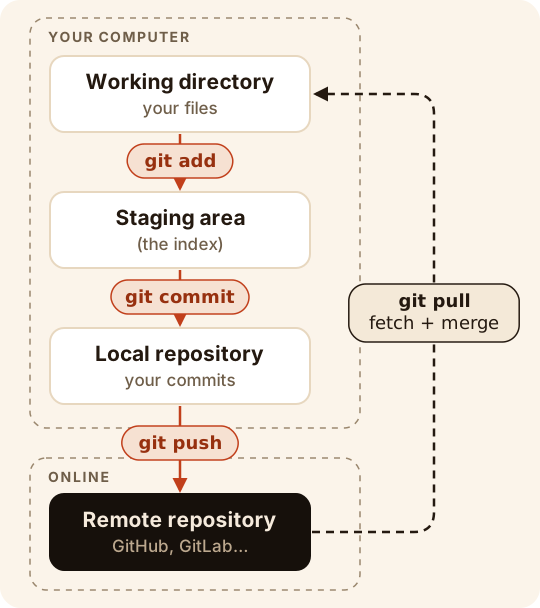
The line that matters is the one between "your computer" and "online": only git push and git pull cross it.
git commit: save a step, locally
A commit is a snapshot of your files at a given moment, with a message, an author and a date. Before committing, you choose what goes into the snapshot with git add.
git statusOn branch mainChanges not staged for commit: modified: contact.html git add contact.htmlgit commit -m "Add the contact form"[main 3f2a9c1] Add the contact form 1 file changed, 12 insertions(+)What to remember:
- A commit never leaves your computer. You can commit on a plane with no Wi-Fi: it all happens locally.
- Only staged files go into the commit. A file you modified but didn't
git addstays out. - Commits are very hard to lose, even after a mistake. That's why the usual advice is to commit often, in small steps.
To dig deeper, read git commit explained and our commit message best practices.
git push: upload your commits
git push sends the remote repository the commits it doesn't have yet. That moment, and only that moment, is when your work becomes visible to your team.
git push origin main# (output shortened)To github.com:camille/my-site.git 8b1d2e4..3f2a9c1 main -> mainRead 8b1d2e4..3f2a9c1 main -> main as: the remote main branch moved from commit 8b1d2e4 to commit 3f2a9c1, your new commit.
Two situations come up all the time:
- First push of a new branch: run
git push -u origin my-branch. The-uflag links your local branch to the remote one, so next time a plaingit pushis enough. - Nothing to send: if you haven't made a new commit, Git answers
Everything up-to-date. Modified files that aren't committed don't go anywhere withgit push.
When git push is rejected
If someone pushed to the same branch before you, the remote has commits you don't have. Git refuses to overwrite their work:
git push ! [rejected] main -> main (fetch first)error: failed to push some refs to 'github.com:camille/my-site.git'hint: Updates were rejected because the remote contains work that you do nothint: have locally.The fix is not to force it, but to get their work first with git pull, then push again. Step by step in our page on the failed to push some refs error.
git pull: get your teammates' work
git pull does two things in a row:
git fetch: it downloads the new commits from the remote;git merge: it merges them into your current branch (orgit rebase, if you configured it that way).
git pullUpdating 3f2a9c1..7c4e8d0Fast-forward README.md | 4 ++++ 1 file changed, 4 insertions(+)Fast-forward means you hadn't committed anything in the meantime, so Git simply moved your branch up to the new commits. If you and a teammate changed the same lines, Git asks you to decide: that's a conflict, and here is how to resolve a merge conflict step by step.
Two messages you will probably meet:
Your local changes to the following files would be overwritten by merge: you have uncommitted changes in files thatgit pullneeds to update. Commit them (or set them aside withgit stash), then rungit pullagain. See local changes would be overwritten.fatal: Need to specify how to reconcile divergent branches: your branch and the remote branch each have commits the other lacks, and recent versions of Git won't choose between merge and rebase for you. Rungit config --global pull.rebase falseonce to keep the classic behavior (merge).
If you want to look at what changed before merging, run git fetch on its own: we compare both in git pull vs git fetch.
In which order should you run them?
Here is a typical day on a shared project:
# When you start: get what the team pushedgit pull # During the day: work, then save in small stepsgit add contact.htmlgit commit -m "Validate the contact form" # Before sharing: get the latest changes, then upload yoursgit pullgit pushThe habit to build: git pull before git push. Integrate your teammates' work first, check that everything still works, then send yours.
Four common misconceptions
- "I committed, so it's on GitHub." No: the commit is local. Until you
git push, nobody else sees it, and it isn't backed up anywhere but your computer. - "git push uploads my modified files." No: it uploads commits. A modified file that isn't committed stays on your machine.
- "git pull will overwrite my work." No: it merges. If a merge would overwrite uncommitted changes, Git stops and warns you instead of deleting them.
- "I have to push after every commit." Not necessarily. Commit often, and push when your work is ready to share, or simply to keep a copy online on your own branch.
Frequently asked questions
Can you git push without git commit?
No. git push uploads commits, not files. With no new commit, Git answers Everything up-to-date, even if you have modified files.
Does git commit upload my code to GitHub?
No. git commit only records a step in your local repository. git push is what sends your commits to GitHub, GitLab or any other remote.
Should I git pull before git push?
It's the right habit. If someone pushed to your branch in the meantime, Git will reject your git push until you get their commits with git pull.
What is the difference between git pull and git fetch?
git fetch downloads new commits from the remote without touching your branch. git pull runs git fetch, then merges those commits straight into your branch.
How often should I commit?
Whenever you finish a small, coherent step: a function that works, a fixed bug, a proofread paragraph. Small, frequent commits are easier to understand, review and undo.
From reading to practice
Type these commands for real in the GitQuest Academy simulated terminal: free, nothing to install, with a certificate at the end.