Git glossary: all commands explained
Over 30 Git commands explained simply, with their syntax and a clear description. Your reference guide for learning and reviewing.
This glossary gathers the essential Git commands, organized by category. Each command is explained with its syntax and a summary of what it does.
New to Git? Start with the Basics section. Looking for a specific command? Browse the categories below. And to practice each command in context, try the GitQuest investigations.
Basics
git init
git init [project-name]Initializes a new Git repository in the current directory or in a new folder.
git clone
git clone <url>Clones a remote repository to your local machine. Copies the entire history and all branches.
git add
git add <file>Adds files to the staging area (index). Prepares changes for the next commit.
git commit
git commit -m "message"Records staged changes in the repository history with a descriptive message.
git status
git statusDisplays the state of the working directory and staging area. Shows modified, added or untracked files.
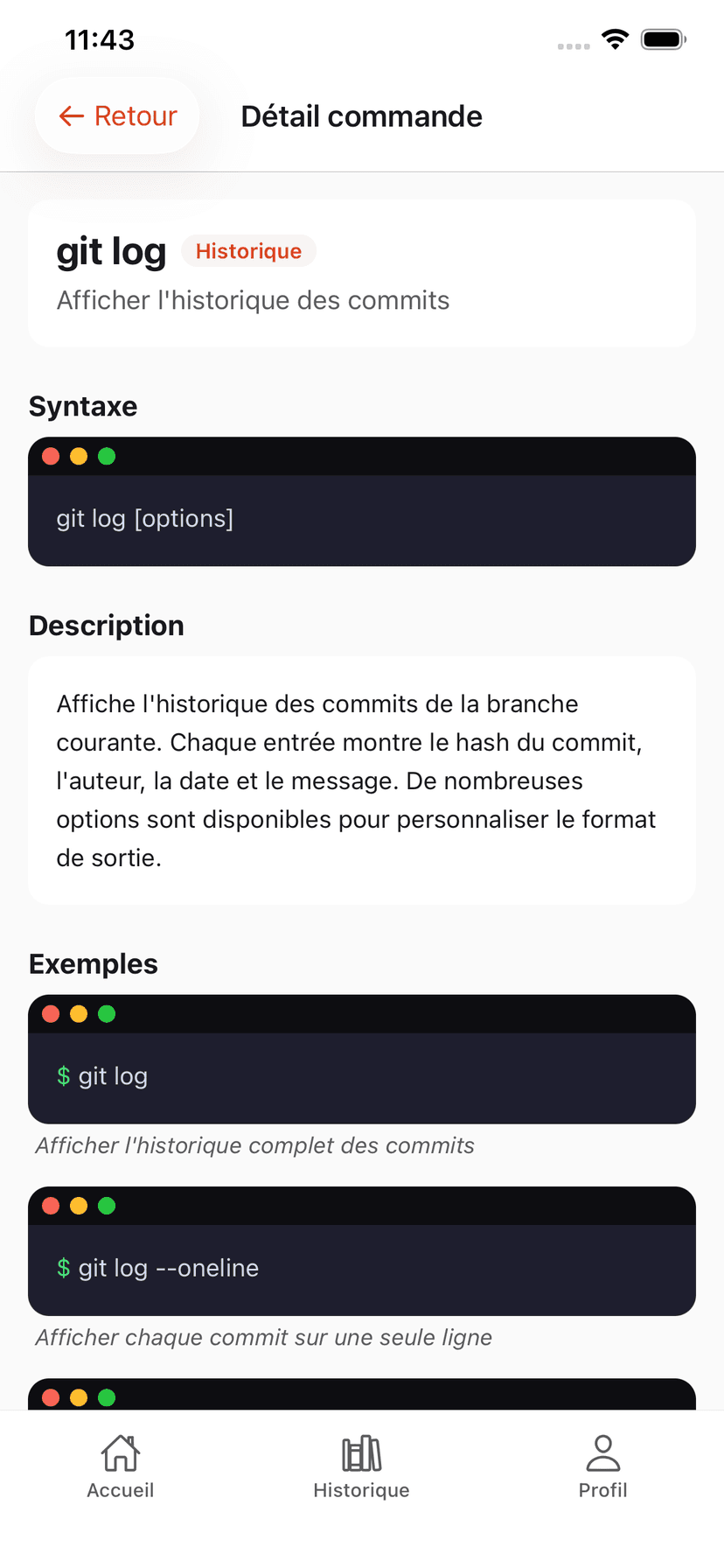
git log
git log [--oneline]Displays the commit history. The --oneline option condenses each commit to a single line.
git diff
git diff [file]Shows differences between the working directory and the staging area, or between two commits.
git rm
git rm <file>Removes a file from both the working directory and the staging area.
git mv
git mv <old> <new>Renames or moves a file and records the change in Git.
Branches
git branch
git branch [name]Lists existing branches or creates a new branch without switching to it.
git checkout
git checkout <branch>Switches branches or restores files. Also used to create and switch with -b.
git switch
git switch <branch>Switches branches (newer and clearer command than checkout for this use case).
git merge
git merge <branch>Merges the specified branch into the current branch. May create a merge commit.
git rebase
git rebase <branch>Replays commits from the current branch onto the target branch. Produces a linear history.
git cherry-pick
git cherry-pick <commit>Applies a specific commit to the current branch without merging the entire source branch.
git branch -d
git branch -d <branch>Deletes a local branch that has already been merged. Use -D to force deletion.
Remote repositories
git remote
git remote -vDisplays configured remote repositories and their URLs (fetch and push).
git push
git push [origin] [branch]Sends local commits to the remote repository. Publishes your work for the team.
git pull
git pull [origin] [branch]Fetches changes from the remote repository and merges them into your local branch.
git fetch
git fetch [origin]Fetches changes from the remote repository without merging. Lets you see what changed before integrating.
git remote add
git remote add <name> <url>Adds a new remote repository with a short name (usually origin).
git push -u
git push -u origin <branch>Pushes a branch and sets up tracking. Future push/pull commands won't need to specify the branch.
Advanced commands
git stash
git stash [pop|list|drop]Sets aside current changes without committing. Useful for switching branches quickly.
git reset
git reset [--soft|--mixed|--hard] <commit>Moves HEAD to a previous commit. Depending on the mode, keeps or discards changes.
git revert
git revert <commit>Creates a new commit that undoes the changes of a previous commit. Safer than reset.
git reflog
git reflogDisplays the history of all HEAD movements. Allows you to find "lost" commits.
git bisect
git bisect startBinary search for the commit that introduced a bug. Git tests commits one by one.
git tag
git tag <name> [commit]Creates a label on a commit to mark a version (e.g., v1.0.0).
git blame
git blame <file>Shows who modified each line of a file and in which commit.
git show
git show <commit>Displays the details of a commit: author, date, message and diff of changes.
git clean
git clean -fdRemoves untracked files from the working directory. Warning, this action is irreversible.
git config
git config --global user.name "Name"Configures Git (name, email, editor, aliases...). --global for all projects, --local for the current project.
A glossary is good. Practice is better.
Knowing a command's syntax isn't enough. To truly master Git, you need to practice in concrete situations. That's exactly what GitQuest offers: interactive investigations where every command gains meaning.
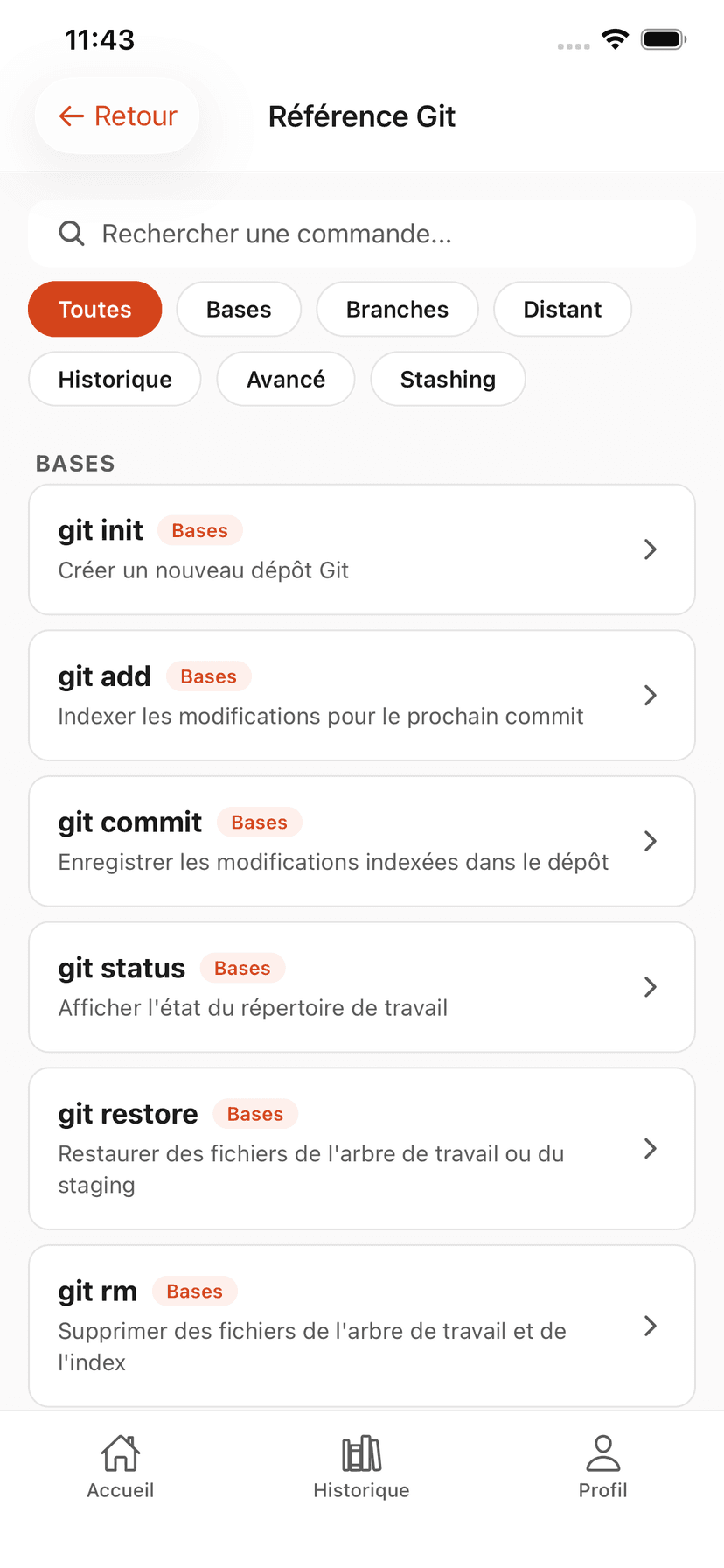
The Git glossary, also in the app
Find all Git commands in the GitQuest app. Search, category filters and concrete examples.
GitQuest is created by Anaïs (nouvelle fenêtre), web developer and head of education, specializing in tech training and digital accessibility.
Ready to go from theory to practice?
Test your Git knowledge with GitQuest's interactive investigations. It's free.
Start now