git switch vs git checkout: which one to use?
git switch vs checkout: switch changes branches, restore discards file changes. Why Git split checkout in 2019, the full cheat sheet, and which one to learn.
By Anaïs Sparesotto (opens in a new window)Published 8 min read
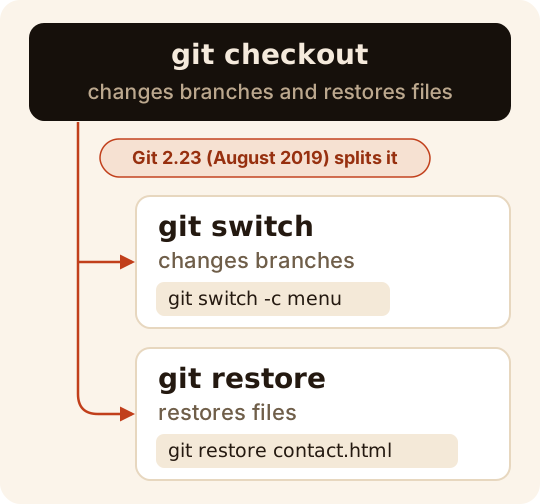
The short answer: use git switch to change branches and git restore to discard changes to a file. git checkout still does both and isn't deprecated, but since Git 2.23 (August 2019) these two newer commands split its two jobs, so each one says exactly what it is about to do.
You will still see git checkout everywhere: in tutorials written before 2019, in Stack Overflow answers, in your teammates' muscle memory. That's fine, both sets of commands get you the same result. Here is how they map to each other, and which one to learn first.
Why Git added switch and restore
The official git checkout documentation says it upfront: the command has two main modes. It switches branches (git checkout main) and it restores a different version of a file (git checkout -- contact.html). When you type git checkout something, Git has to guess whether you mean a branch, a commit or a file.
The catch is that those two jobs carry very different risks:
- Switching branches is safe: if it would overwrite uncommitted changes, Git stops and tells you.
- Restoring a file is destructive:
git checkout -- contact.htmlreplaces your file with its last saved version, with no confirmation. The changes you lose were never recorded by Git, so it can't give them back.
One command for a harmless action and an irreversible one is a trap, especially for beginners. So Git 2.23, released on August 16, 2019, introduced two commands that each do one job: git switch for branches, git restore for files.
What about the "experimental" warning?
When they first shipped, the git switch and git restore manual pages said "THIS COMMAND IS EXPERIMENTAL. THE BEHAVIOR MAY CHANGE." That is no longer true: the Git 2.51 release notes (August 2025) officially declare both commands no longer experimental. If you still see the warning, the page you're reading, or your Git install, predates that release.
git checkout vs switch and restore: the cheat sheet
| What you want to do | With checkout | With switch or restore |
|---|---|---|
| Go to a branch | git checkout main | git switch main |
| Create a branch and go to it | git checkout -b menu | git switch -c menu |
| Create or reset a branch | git checkout -B menu | git switch -C menu |
| Go back to the previous branch | git checkout - | git switch - |
| Check out a specific commit | git checkout a1b2c3d | git switch --detach a1b2c3d |
| Discard changes to a file | git checkout -- contact.html | git restore contact.html |
The real difference is elsewhere: git switch only accepts branches (or a commit, if you add --detach), and git restore only accepts files. A typo can no longer wipe a file when you meant to change branches:
git switch contact.htmlfatal: invalid reference: contact.htmlCreating and switching branches
git switch -c contact-formSwitched to a new branch 'contact-form'git switch mainSwitched to branch 'main'git switch -Switched to branch 'contact-form'What to remember:
-cstands for *create*: Git creates the branch from where you are, then moves onto it. If the branch already exists, Git refuses withfatal: a branch named 'contact-form' already exists.git switch -takes you back to the branch you were on before, handy when you're going back and forth.- A branch that only exists on the remote, say a teammate's branch after a
git fetch:git switch contact-formcreates the local branch and sets it up to trackorigin/contact-form. Git confirms withbranch 'contact-form' set up to track 'origin/contact-form'.(git checkoutdoes the same.)
Like checkout, git switch won't change branches if it would overwrite your uncommitted changes:
git switch contact-formerror: Your local changes to the following files would be overwritten by checkout: index.htmlPlease commit your changes or stash them before you switch branches.AbortingYes, the message says "checkout" even though you typed git switch: in Git's source code, both commands live in the same file and share the same machinery. Commit your changes or set them aside with git stash, then try again.
Every option is covered in git switch explained, and managing the branches themselves (listing, renaming, deleting) in git branch explained.
Restoring a file
git status points you to it on its own: to discard changes to a file, its hints suggest git restore.
git statusOn branch mainChanges not staged for commit: (use "git add <file>..." to update what will be committed) (use "git restore <file>..." to discard changes in working directory) modified: contact.html no changes added to commit (use "git add" and/or "git commit -a") git restore contact.htmlgit statusOn branch mainnothing to commit, working tree cleanTwo other uses come up all the time:
- Unstage a file without losing your changes:
git restore --staged contact.html. It's the opposite ofgit add, and it's whatgit statussuggests (use "git restore --staged <file>..." to unstage). Older tutorials usegit reset HEAD contact.htmlfor the same thing. - Grab a file from another branch:
git restore --source=main contact.html. One subtle difference:git checkout main -- contact.htmlalso stages the file, whilegit restoreonly touches your working tree by default. Add--staged --worktreeto get exactly the same result.
More options and examples in git restore explained.
Detached HEAD: where switch protects you
HEAD is your current position in the history, and it normally points to a branch. If you move straight onto a commit, HEAD becomes "detached": you can look at the code as it was, but any commit you make there belongs to no branch, and it's easy to lose track of it once you leave.
With git checkout, giving it a commit (or a tag) is enough to get there, and Git explains where you landed afterwards:
git checkout be82767Note: switching to 'be82767'. You are in 'detached HEAD' state. You can look around, make experimentalchanges and commit them, and you can discard any commits you make in thisstate without impacting any branches by switching back to a branch. If you want to create a new branch to retain commits you create, you maydo so (now or later) by using -c with the switch command. Example: git switch -c <new-branch-name> Or undo this operation with: git switch - Turn off this advice by setting config variable advice.detachedHead to false HEAD is now at be82767 First commitNotice that even this checkout message tells you to use git switch -c and git switch -.
git switch refuses until you confirm with --detach:
git switch be82767fatal: a branch is expected, got commit 'be82767'hint: If you want to detach HEAD at the commit, try again with the --detach option.git switch --detach be82767HEAD is now at be82767 First commitSame thing with a tag: git switch v1.0 answers fatal: a branch is expected, got tag 'v1.0'. To get back to your branch, run git switch - or git switch main. If you made commits in detached HEAD and want to keep them, create a branch for them first with git switch -c new-branch. Our page on the detached HEAD state has the details, including how to find commits you've already lost track of.
Which one should you learn?
If you're starting out, learn git switch and git restore. Each command does one thing, its name tells you what that thing is, and it refuses ambiguous input: a file name passed to switch, a commit without --detach. Git's own messages, in git status and in the detached HEAD warning, already point you to them.
Still learn to read git checkout. You'll find it in every tutorial written before 2019, in scripts, and in the habits of people who have used Git for years. The official documentation doesn't mark it as deprecated or obsolete. The cheat sheet above is all you need to translate one form into the other, and git checkout explained covers its options.
The only requirement for switch and restore is Git 2.23 or later. Run git --version to check.
Frequently asked questions
Is git checkout deprecated?
No. The official Git documentation still describes git checkout with its two modes and never calls it deprecated. git switch and git restore are more focused alternatives, not mandatory replacements.
Is git switch still experimental?
No. Git 2.51, released in August 2025, removed the experimental label from both git switch and git restore, as stated in its release notes. You may still see the warning in older docs and tutorials.
What's the difference between git switch -c and git checkout -b?
None in the result: both create a branch from where you are and move you onto it. The -c in switch stands for create, the -b in checkout for branch.
Why does git switch refuse to go to a commit?
To keep you from ending up in detached HEAD by accident. If that's really what you want, for example to look at an old version of the project, add the dedicated option: git switch --detach <commit>.
How do I discard changes to a file with git restore?
Run git restore <file>: the file goes back to how it was at your last git add, or at the last commit if you haven't staged it since. The discarded changes are gone for good, so check git diff first.
Which Git version do I need for git switch?
Git 2.23 or later, released in August 2019. Check yours with git --version. If it's older, update Git or keep using git checkout, which does the same job.
From reading to practice
Type these commands for real in the GitQuest Academy simulated terminal: free, nothing to install, with a certificate at the end.
Keep learning
- git switchChange or create branches (the modern alternative to checkout for branches).
- git checkoutSwitch branches or restore files; how it relates to git switch and git restore.
- git restoreDiscard changes or unstage files (the modern alternative to checkout for files).
- detached HEAD stateWhat it means, how to keep your work and get back to a branch.
- git branchCreate, list, rename and delete branches; naming conventions.