Git merge vs rebase: which one should you use?
Merge and rebase both combine branches, but they leave a different history. The difference in a diagram, the golden rule, and when to pick each one.
By Anaïs Sparesotto (opens in a new window)Published 8 min read
The short answer: git merge and git rebase both bring the work from one branch into another and leave you with the same files, but with a different history. git merge adds a merge commit and keeps a record of where the branches split, while git rebase replays your commits on top of the other branch to get a straight line, rewriting them along the way.
So the choice isn't about the end result, it's about readability: what history does your team want to read six months from now? And one rule is not up for debate: never rebase commits other people already have.
What each command does to your history
Say you made two commits on a contact-form branch while a "Fix the footer" commit landed on main. The two branches have diverged:
git log --oneline --graph --all* 5d9daab (HEAD -> main) Fix the footer| * 11d5bd7 (contact-form) Validate the email address| * c034a17 Add the contact form|/* 0cfdd7a Create the home page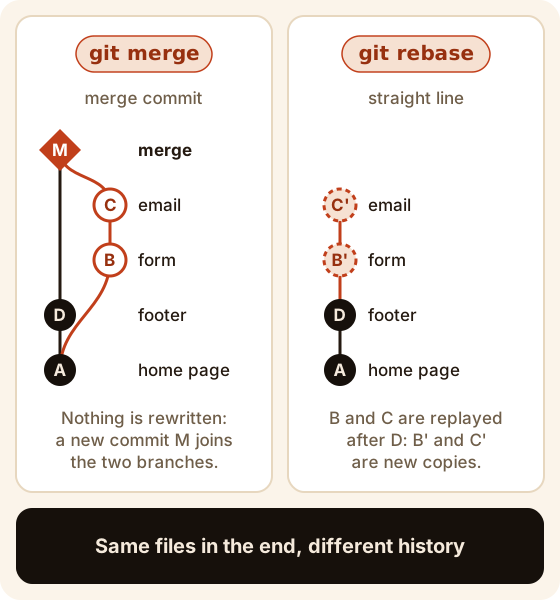
git merge: a merge commit
From main, git merge joins the two branches in a new commit that has two parents:
git merge contact-form# (output shortened)Merge made by the 'ort' strategy.git log --oneline --graph* 715fe47 (HEAD -> main) Merge branch 'contact-form'|\| * 11d5bd7 (contact-form) Validate the email address| * c034a17 Add the contact form* | 5d9daab Fix the footer|/* 0cfdd7a Create the home pageGit first opens your editor with a suggested message: save and close to confirm. No existing commit changes, and the history shows that two lines of work happened in parallel. The downside: on a busy project, merge commits pile up and the graph gets hard to follow. More in git merge explained.
git rebase: a straight line
From your branch, git rebase main moves it to the tip of main and replays your commits one by one:
git switch contact-formSwitched to branch 'contact-form'git rebase mainSuccessfully rebased and updated refs/heads/contact-form.git log --oneline --graph --all* 6599580 (HEAD -> contact-form) Validate the email address* e295b79 Add the contact form* 5d9daab (main) Fix the footer* 0cfdd7a Create the home pageLook at the hashes: c034a17 is now e295b79, and 11d5bd7 is now 6599580. These are brand new commits: same changes, same messages, different parent. Back on main, git merge contact-form now answers Fast-forward, with no merge commit. See also git rebase explained.
Git merge vs rebase at a glance
git merge | git rebase | |
|---|---|---|
| Resulting history | Branches and merge commits | One straight line |
| Existing commits | Untouched | Copied, with new hashes |
| Conflicts | Resolved once, in the merge commit | Resolved commit by commit |
| On a shared branch | Safe | Avoid |
| Pushing afterwards | git push | git push --force-with-lease if the branch was already pushed |
The golden rule: never rebase shared commits
A rebase swaps commits for copies. If someone else has the originals, you're in trouble: to publish your version you have to force push, which removes the old commits from the remote branch. The next time your teammates pull, every commit shows up twice, and anything pushed in the meantime can vanish from the branch.
Hence the rule: never rebase commits that are already pushed to a shared branch (main, develop, or any branch other people work on). You can freely rebase:
- local commits you haven't pushed yet;
- your own branch, even after pushing it, as long as nobody else works on it.
When in doubt, merge: it never rewrites anything.
Handling conflicts during a rebase
Since a rebase replays your commits one at a time, it can stop at any of them. Here, your "Link to the contact form" commit edits the same footer line as main:
git rebase main# (output shortened)CONFLICT (content): Merge conflict in index.htmlerror: could not apply c4fbb1b... Link to the contact formThe conflict markers look the same as with a merge, but the sides are flipped: during a rebase, the HEAD side shows main (plus any commits already replayed), and the other side is the commit Git is replaying.
cat index.html<h1>My site</h1><<<<<<< HEAD<footer>(c) 2026 My site</footer>=======<footer>(c) 2026 - <a href="contact.html">Contact</a></footer>>>>>>>> c4fbb1b (Link to the contact form)Keep what should stay (here, both changes), delete the markers, then:
git add index.htmlgit rebase --continue[detached HEAD fc76630] Link to the contact form 1 file changed, 1 insertion(+), 1 deletion(-)Successfully rebased and updated refs/heads/contact-form.Git opens your editor to confirm the commit message, then moves on to the next commit. Don't worry about detached HEAD: Git works off-branch during the rebase and puts your branch back at the end. Want out? git rebase --abort returns your branch to exactly where it was before you started, and git rebase --skip drops the commit being replayed. Reading and resolving the conflict itself works just like a merge: see how to resolve a Git merge conflict.
git pull --rebase and the pull.rebase setting
git pull runs git fetch and then, by default, a merge. If a teammate pushed while you were committing locally, every sync adds a pointless Merge branch 'main' of ... commit. Recent versions of Git won't even pick for you anymore when branches diverge: fatal: Need to specify how to reconcile divergent branches.
git pull --rebase replays your local commits on top of the ones you just fetched instead:
git pull --rebaseSuccessfully rebased and updated refs/heads/main.git log --oneline --graph* b5a3c04 (HEAD -> main) Add the site map* ab6807c (origin/main, origin/HEAD) Update the README* ec9dc12 Create the home pageThis rebase follows the golden rule: only your unpushed commits get replayed. To make it the default, run git config --global pull.rebase true once (drop --global to set it for the current repository only; false goes back to merging). If you have uncommitted changes, git pull --rebase refuses to start: commit them or set them aside with git stash first.
After a rebase: git push --force-with-lease
You had already pushed your own branch (as a backup, or to open a pull request), then rebased it. The remote still has the old commits, so a plain git push gets rejected:
git push# (output shortened) ! [rejected] contact-form -> contact-form (non-fast-forward)The full message suggests git pull, but that would be a mistake here: you'd end up with every commit twice, plus a merge commit. What you want is to replace the remote branch with your version:
git push --force-with-lease# (output shortened) + 4de2e4a...a631d17 contact-form -> contact-form (forced update)--force-with-lease is the careful version of --force: Git only overwrites the remote branch if it hasn't moved since you last fetched it. If someone pushed to it in the meantime, the push is rejected with (stale info) instead of wiping out their work. One catch: a git fetch in between (yours, or one your editor runs in the background) defeats that check, so add --force-if-includes to make Git also verify that you've actually integrated those commits. Other reasons a push gets rejected: failed to push some refs.
Picking a team convention
Merge and rebase aren't mutually exclusive. What matters is agreeing on one rule and writing it down, in your README or contributing guide. Three conventions are common:
- Always merge: every branch comes in through a merge commit (
git merge --no-ffcreates one even when a fast-forward is possible). Nothing gets rewritten: the easiest option for a team new to Git. - Rebase, then fast-forward: everyone rebases their branch onto
main, then integrates it withgit merge --ff-only, which refuses if the branch isn't up to date.mainstays a straight line. - Squash: all the branch's commits become a single commit when it's integrated (
git merge --squash). A straight line, but the step-by-step detail is gone frommain.
On GitHub, these are the three merge options on a pull request ("Create a merge commit", "Rebase and merge", "Squash and merge"), and a repository can allow just one. Whatever you pick, make sure everyone sets pull.rebase the same way. For the bigger picture on organizing branches, read the Git branching workflow.
Frequently asked questions
What is the difference between git merge and git rebase?
git merge joins two branches in a merge commit without touching existing commits. git rebase copies your commits onto the tip of the other branch, so the history becomes linear. The files you end up with are the same.
Can git rebase lose my work?
Rarely, as long as it's your own commits: right after a rebase, git reset --hard ORIG_HEAD puts your branch back the way it was (it also wipes uncommitted changes), and git reflog keeps track of the old commits. The real danger is shared branches.
Should I use git pull --rebase?
It's a good habit: no merge commit every time you sync, and only your unpushed commits get replayed. To turn it on everywhere, run git config --global pull.rebase true.
How do I cancel a rebase in progress?
Run git rebase --abort. Your branch goes back to where it was before the rebase, even if you had already resolved some of the conflicts.
Why is git push rejected after a rebase?
The remote still has your old commits, and your branch no longer contains them. If the branch is yours alone, push with git push --force-with-lease. If others work on it, don't force anything: go back to the state before the rebase and merge instead.
From reading to practice
Type these commands for real in the GitQuest Academy simulated terminal: free, nothing to install, with a certificate at the end.
Keep learning
- git mergeMerge branches; fast-forward vs merge commit; handling conflicts.
- git rebaseReplay commits on a new base; rebase vs merge; interactive rebase; risks.
- Branching workflowbranch, switch, merge, rebase and cherry-pick; merge vs rebase; naming conventions.
- How to resolve a merge conflictDetect, understand and resolve merge conflicts cleanly.