Git interview questions and answers for juniors
The Git questions junior developers get in interviews, each with a short model answer, the trap to avoid and an exercise to practice before the day.
By Anaïs Sparesotto (opens in a new window)Published 11 min read
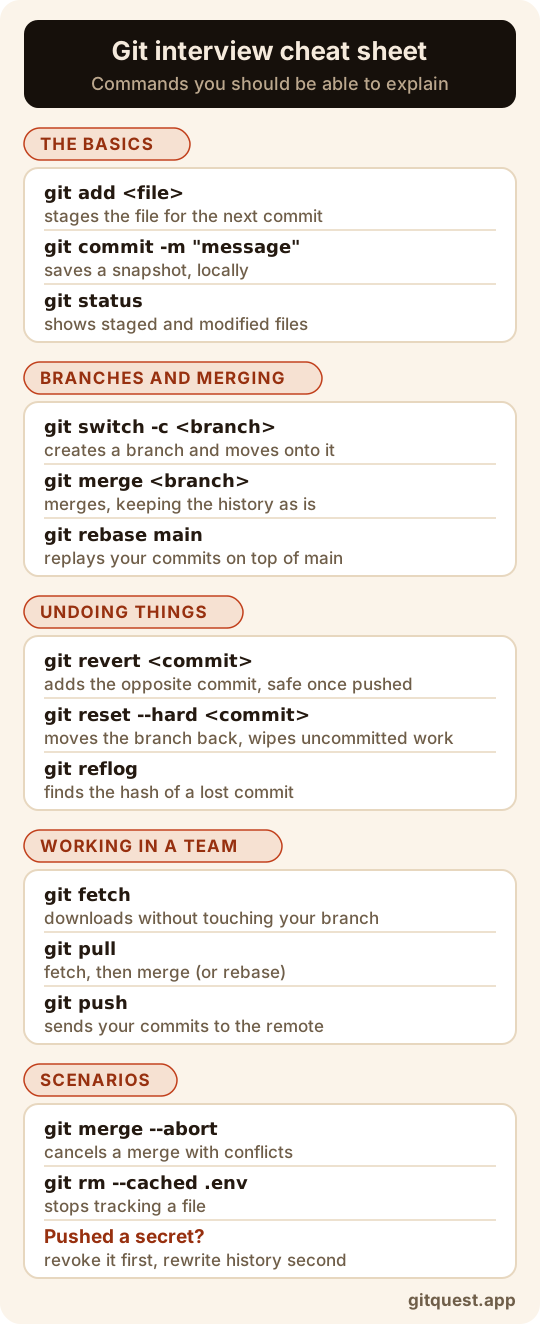
Here are 12 common Git interview questions for junior developer roles, each with a short model answer and the trap hiding behind it. For every topic, you also get a concrete way to practice before the big day.
Don't memorize the answers word for word. Read one, then explain it out loud in your own words, ideally with an example from one of your projects. If a term trips you up, the Git glossary defines it in one line.
The basics
1. What's the difference between Git and GitHub?
Git is a version control system: it runs on your machine and records your project's history, even offline. GitHub is an online service that hosts Git repositories and adds collaboration tools on top: pull requests, issues, code review, CI. GitLab and Bitbucket play the same role. You can use Git without GitHub, but not GitHub without Git.
The trap: saying "GitHub is just Git online." It's not entirely wrong, but it blurs the tool and the platform. Show that you know which one does what.
Practice it: create a repository with git init and make two commits without ever opening GitHub. The full comparison is in Git vs GitHub.
2. What is a commit?
A commit is a snapshot of your project at a point in time, saved in your local repository. It stores the state of every tracked file, a message, a date, who made it, and a link to the previous commit, its parent. Each commit has a unique ID, its hash, usually shown in short form like b4503fc.
The trap: saying a commit sends your code to GitHub. It stays on your machine until you run git push. Another one to avoid: "a commit stores the differences." Git records a full snapshot, and files that didn't change simply aren't duplicated.
Practice it: the GitQuest investigation "My First Repository" walks you through your first commits with the five basic commands.
3. What is the staging area for?
The staging area, also called the index, sits between your files and your repository: git add puts changes there, and git commit only records what's in it. That's what lets you split your work into clean, focused commits. You can see it clearly when a file changes again after git add:
git add index.html# you edit index.html again, and style.cssgit statusOn branch mainChanges to be committed: (use "git restore --staged <file>..." to unstage) modified: index.html Changes not staged for commit: (use "git add <file>..." to update what will be committed) (use "git restore <file>..." to discard changes in working directory) modified: index.html modified: style.cssindex.html shows up twice: only the staged version goes into the next commit.
The trap: thinking git commit -a makes git add unnecessary. It picks up changes to files Git already tracks, but it ignores new files: those still need a git add.
Practice it: in the investigation "The Unstager", you take a single file out of the staging area with git restore --staged without touching the rest.
Branches and merging
4. What is HEAD?
HEAD tells you where you are in the history. Most of the time it points to a branch, which in turn points to that branch's latest commit: when you commit, the branch moves forward and HEAD moves with it.
cat .git/HEADref: refs/heads/maingit log --oneline --decorateb4503fc (HEAD -> main) Add a welcome message3c87b8d Add the home pageHEAD~1 means the parent of the current commit.
The trap: mixing up HEAD with main, or with "the latest commit in the repo." If you move straight onto a commit (git switch --detach 3c87b8d), HEAD no longer points to any branch. That's detached HEAD, and commits you make there are easy to lose track of.
Practice it: the investigation "The Detached Commit" has you attach three commits made in detached HEAD back to a branch.
5. What's the difference between merge and rebase?
Both bring the work from one branch into another. git merge keeps the history exactly as it happened and adds a merge commit when the branches have diverged. git rebase main replays your commits one by one on top of main: the history becomes a straight line, but those commits are recreated with new hashes. In our test repository, git rebase main turned commits 40aad72 and 39bf24e on the menu branch into 9507037 and 993047f.
The trap: claiming one is simply "better." Show that you know the golden rule instead: don't rebase commits you've already pushed to a shared branch, because your teammates are building on the old hashes.
Practice it: the investigation "The Rebase Nightmare" makes you resolve conflicts in the middle of a rebase. The two approaches are compared in our guide to the Git branching workflow.
Undoing things
6. What's the difference between git reset and git revert?
git revert <commit> creates a new commit that does the opposite of the one you target. The history stays intact, so it's the right choice for a commit that's already pushed. git reset moves your branch back to an earlier commit, as if the later ones never happened: it rewrites history, so keep it for work you haven't shared yet.
git revert HEAD --no-edit# (output shortened)[main ac00901] Revert "Add the promo banner" 1 file changed, 1 deletion(-)The trap: forgetting the three modes of git reset. --soft keeps your changes staged, --mixed (the default) keeps them in your files, and --hard throws them away, uncommitted work included, and Git can't give that back.
Practice it: play "The Undo Button", then compare every option in our guide to undoing changes in Git.
7. How do you recover a commit you deleted by mistake?
With git reflog. Git keeps a log of every move HEAD makes on your machine: commits, resets, branch switches, rebases. A commit "deleted" by git reset --hard is no longer on any branch, but it still exists, and the reflog gives you its hash:
git reset --hard HEAD~1HEAD is now at ac00901 Revert "Add the promo banner"git reflog# (output shortened)ac00901 HEAD@{0}: reset: moving to HEAD~1c1f8575 HEAD@{1}: commit: Add the contact formgit branch recovered c1f8575The recovered branch now points to the lost commit. To move your current branch straight back to it, run git reset --hard c1f8575 instead.
The trap: promising the reflog can save anything. It only knows about commits: changes you never committed and then wiped with --hard are gone. It's also local, and its entries expire (by default, after 30 days for a commit that's no longer on any branch).
Practice it: the investigation "The Catastrophic Reset" is exactly this scenario: find the commit, then move the branch back onto it.
Working in a team
8. What's the difference between git fetch and git pull?
git fetch downloads new commits from the remote and updates remote-tracking branches like origin/main, without touching your branch or your files. git pull runs git fetch, then brings those commits into your branch with a merge (or a rebase, if you've configured it that way). After a git fetch, you can look before you integrate:
git statusOn branch mainYour branch is behind 'origin/main' by 1 commit, and can be fast-forwarded. (use "git pull" to update your local branch) nothing to commit, working tree cleangit log --oneline main..origin/main1a1fd1b Add a READMEThe trap: saying git fetch "doesn't do anything." It leaves your branch alone, but it updates origin/main, and that's exactly what lets you compare before merging.
Practice it: the investigation "The Push Rejection" starts with a rejected push and has you fetch the remote work before sending yours. Every remote command is covered in Git remote and collaboration.
9. What branching strategy would you use in a team?
There's no single right answer, but a strong one describes a simple setup: main stays stable, each feature or fix lives on a short-lived branch (git switch -c add-to-cart), then goes back into main through a pull request reviewed by someone else. Other models exist, like Git Flow with its release branches, or trunk-based development, where people merge into main several times a day.
The trap: reciting Git Flow without saying why. Explain what a strategy should guarantee (a main branch that works, reviewed changes, branches that don't live for weeks), then ask how their team works.
Practice it: on a side project, ban yourself from committing to main for a week: one branch and one pull request per change, even when you're working alone.
10. What makes a good commit message?
A short first line, around 50 characters, written in the imperative mood and saying what the commit does: "Fix shipping cost calculation." If the change needs it, add a blank line, then a body explaining why. Some teams add a type prefix such as feat: or fix: (the Conventional Commits convention).
The trap: treating the message as a detail. "fix" or "wip" will mean nothing in six months, to you or to whoever is tracking down a bug with git log or git blame.
Practice it: reread your last ten messages with git log --oneline -10, then play "The Messy History".
Scenario questions
11. Your merge stops on a conflict. What do you do?
Start with git status, which lists the conflicted files under both modified. Inside each file, Git wraps the two versions in markers:
cat index.html<<<<<<< HEAD<h1>Home page</h1>=======<h1>Welcome to our site</h1>>>>>>>> title<p>Welcome</p><footer></footer>The top part is your current branch (HEAD), the bottom part is the branch you're merging, here title. Write the right version, sometimes a mix of both, delete the markers, then finish with git add index.html and git commit. To go back to where you were before the merge, run git merge --abort.
The trap: picking a side at random to move fast, or leaving markers in the code. Mention that you test the result before committing, and that you check with whoever wrote the other version when their intent isn't clear.
Practice it: the investigation "The Merge Conflict" has you write a version that is neither one nor the other.
12. You pushed a password or an API key. What do you do?
First, treat the secret as compromised: revoke or rotate it right away (new key, new password), before you even touch Git, because anyone with access to the repository may already have copied it. Then stop tracking it and make sure it can't come back:
git rm --cached .envrm '.env'echo ".env" >> .gitignoregit add .gitignoregit commit -m "Stop tracking .env"[main e34644d] Stop tracking .env 2 files changed, 1 insertion(+), 1 deletion(-) delete mode 100644 .env create mode 100644 .gitignoregit show HEAD~1:.envAPI_KEY=abcThe last command proves the point: the secret is still readable in the history. Removing it means rewriting history with a separate tool such as git filter-repo (git filter-repo --invert-paths --path .env strips the file from every commit) or BFG Repo-Cleaner, force-pushing, and asking the team to start again from a fresh clone.
The trap: answering "I'd delete the file and commit again," or jumping straight to rewriting history. Rewriting comes second: clones, forks or caches may still hold the secret, and only revoking it makes it useless.
Practice it: the investigation "The Secret File" has you set up a .gitignore for the whole team, so it doesn't happen in the first place.
Frequently asked questions
How should I prepare for Git interview questions?
Practice in a real terminal instead of rereading definitions: create a test repository, cause a conflict, run git reset --hard and then get the commit back with git reflog. Our Git cheat sheet works well as a revision list.
Do I need to know every Git command by heart?
No. What matters is understanding what each command does and when it's risky. You can look up options in seconds with git help <command> or the official documentation.
What if I don't know the answer?
Say so, then think out loud: what you know about the topic, what you would try, and how you'd check it safely, for example in a throwaway repository. An honest, methodical answer beats a vague definition.
What level of Git should I aim for in a first job?
Be comfortable cloning a repository, creating a branch, committing, pushing, opening a pull request, pulling in other people's work and resolving a simple conflict. Also know how to undo a commit without breaking the team's history. Interactive rebase, git bisect and hooks can come later.
From reading to practice
Type these commands for real in the GitQuest Academy simulated terminal: free, nothing to install, with a certificate at the end.
Keep learning
- Git glossary30+ Git terms and commands explained simply, with syntax and examples.
- Undo changes in GitDecision tree for every case: restore, reset, revert, stash, clean, reflog.
- Branching workflowbranch, switch, merge, rebase and cherry-pick; merge vs rebase; naming conventions.
- Git cheat sheet50+ essential commands sorted by task (setup, commit, branches, remote, history, undo), each linked to its guide.